Let customers order the moment they’re ready.
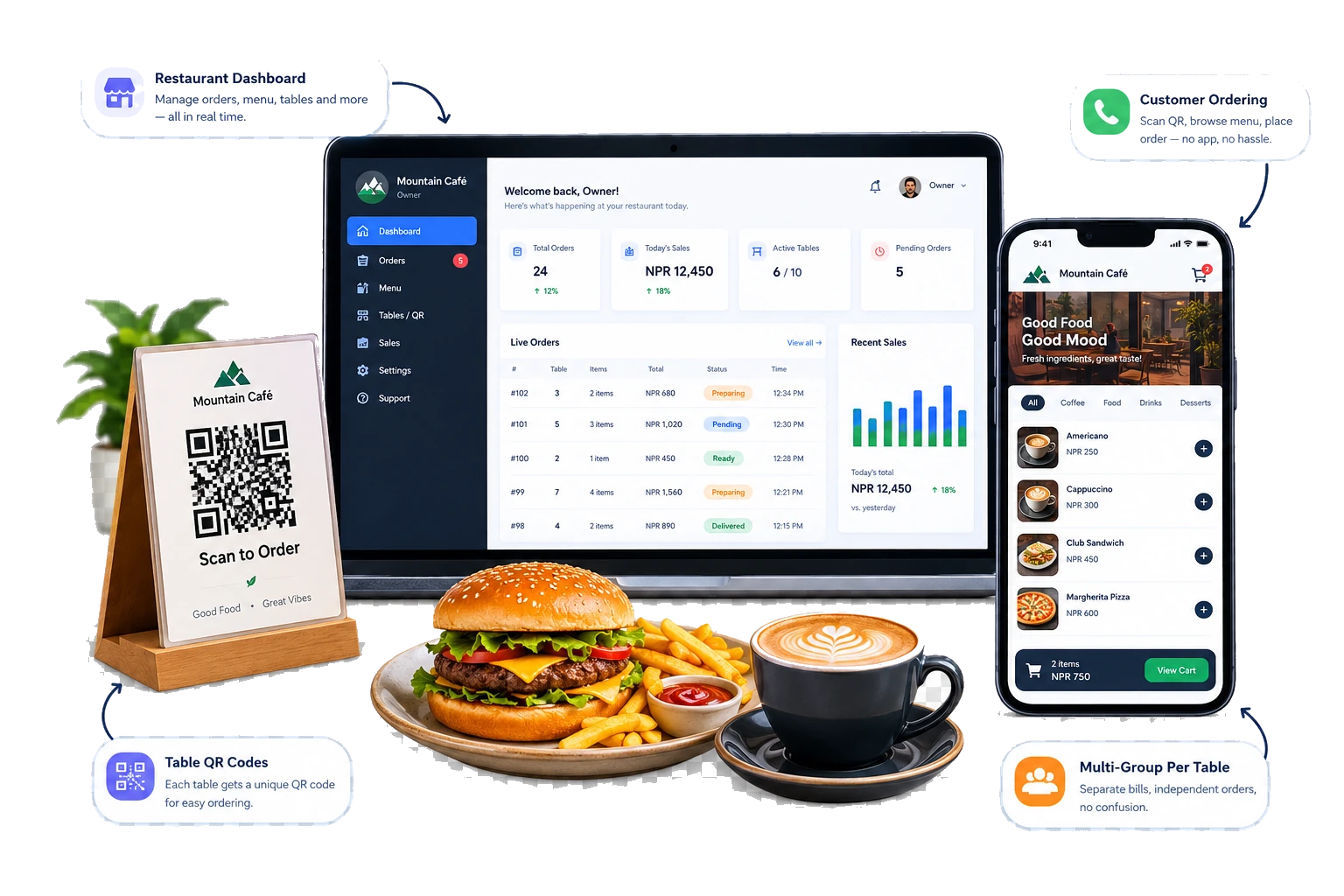
QR ordering built for small cafés and restaurants. Customers scan, browse, and order from their own phone, while you keep every table, order, and sale in one dashboard.
7 Days
Free trial period
No Code
Instant setup
Real-time
Live order stream
Good afternoon 👋
The Daily Grind
Ordering
🟢 Open
On the menu
18 dishes
Payment
At counter
Highlights
✦ TODAY'S PICKSCaramel latte
Rs. 320
Butter croissant
Rs. 240
Coffee
6 itemsMatcha cloud
Rs. 350
View your order
2 items · Pay at counter
The problem
A good order still gets stuck in the middle.
Even a simple order can turn into a chain of small delays, and during busy hours that chain adds up faster than any one waiter can keep up with.
Customer is ready to order
They've decided, but no one's nearby to take it.
They look for a waiter, then wait
Longer during peak hours, when every table needs attention at once.
The order is explained and remembered
Written on paper or memorised, either way there's room for mistakes.
It finally reaches the kitchen
And the customer waits again, unsure if it was received at all.
For the customer
- Ready to order, but can’t find anyone
- Feels rushed once a waiter does arrive
- Can’t quietly check prices or totals first
For your staff
- Running table to table just to take orders
- Small requests mean another trip back
- One quiet gap in staffing slows everything down
How it works for customers
Scan, browse, order, track — that’s the whole thing.
No app to download, no account to create. Just a phone camera and a few taps.
Scan
A customer scans the QR code on their table. Your menu opens instantly, already linked to that exact table.
Browse
They look through items, prices, and categories at their own pace, no one standing over the table waiting.
Order
Items go into a running cart with the total building as they go. They confirm, and it lands straight on your dashboard.
Track
Received, preparing, ready, served. The customer sees real progress instead of wondering if it went through.
One table, several orders
Everyone at a table can order separately from their own phone. Each order stays tied to the same table number, so nothing gets mixed up.
For the restaurant
One dashboard for tables, menu, orders, and sales.
Everything below is live in the product today, not a roadmap.
Tables & QR codes
Generate a QR code per table, download it, and print it — as many tables as you need.
Menu management
Add, edit, delete, or duplicate items, and update prices any time. No reprinting a paper menu.
Live orders, instantly
New orders appear on the dashboard in real time, with a sound and visual alert so nothing gets missed.
Order status tracking
Move an order through pending, preparing, ready, completed. The customer sees it update live.
Customer notes on every order
“No onions,” “bring it all together” — special requests arrive attached to the order itself.
Edit before it's prepared
Fix a quantity or drop an item while an order is still pending. The total recalculates on its own.
Search & manage orders
Find any order by table or customer name, and delete one with a confirmation step if needed.
Sales overview
Today's orders and revenue at a glance, plus a rolling 7-day summary. No spreadsheet required.
Export & receipts
Download orders as a CSV, or print a clean receipt for any single order.
Self-serve setup
Sign up and get your own ordering page running. No developer needed to get started.
✨ Actively maintained — new small improvements ship regularly based on what real restaurants ask for.
Simple, transparent pricing
One simple plan, priced by your tables.
OrderKhaja
Essential QR ordering for any café.
Now / month (for 4 tables)
Questions
Everything owners ask us
Do my customers need to download an app?
No. They scan the QR code on the table with their phone camera, and the menu opens in the browser. No app, no account.
What do I need to buy?
Nothing special. Any phone or tablet for the counter or kitchen. A thermal printer is optional, for kitchen tickets (KOT) and bills.
How much does it cost?
The price depends on how many tables you have; you can see it in Pricing above. Every café starts with a free trial, no payment needed to start.
How do I pay for OrderKhaja?
By eSewa or bank QR: pay, upload the screenshot in your dashboard, and we activate your plan. Yearly plans get a discount.
What happens if the internet goes off?
OrderKhaja needs internet. If it drops, take orders the usual way for a few minutes; new orders appear again as soon as you are back online.
Can other cafés see my menu, orders or sales?
Never. Every café's data is completely private and separated. Even if your neighbour uses OrderKhaja, they can't see anything of yours.
Can I print kitchen tickets and bills?
Yes. Print KOTs for the kitchen and bills with VAT and service charge, or show the bill on screen.
Are the bills IRD-certified tax invoices?
Not yet. Use them as customer bills and for your own records; keep your IRD-certified billing for tax invoices.
Does it work in Nepali?
Yes. Customers can switch the menu between English and Nepali, and your dashboard works in both.
Can my staff use it?
Yes. Add waiters, cashiers and kitchen staff with their own login. Each role only sees what it needs; for example the kitchen can't see sales.
Who sets it up and how long does it take?
We help you set up your menu, tables and QR cards, usually the same day. You can also do it yourself in about 30 minutes.
Can I stop anytime?
Yes. There is no contract. If you don't renew, your plan simply ends.
Still have a question? WhatsApp us
Already using OrderKhaja?
Owners and staff use the same sign-in. We'll open the right dashboard for you.
Sign in →Staff: use the Google account or email your owner added.